Autotext in Any Application
...not just in Word or Outlook.
The autotext feature expands text shortcuts into longer, predefined phrases or sentences. When typing a shortcut or a specific keyword, PhraseExpress recognizes this input and replaces it with a longer, pre-set text snippet. Automatically or on demand. This feature saves user's time by typing short codes instead of full phrases, making writing more efficient and reducing typing mistakes.
While many programs and even operating systems include a basic autotext feature, also called "smart phrases", PhraseExpress provides many additional features:

Autotext in any Program
PhraseExpress can expand text abbreviations into words and sentences.
- Works universally in any program and is not limited to MS Office.
- The same autotext shortcut can expand different text depending on the target programs.
- Use it for dot phrases in medical transcription.
SmartComplete
No more memorizing abbreviations.
Just start typing the beginning of a text, and PhraseExpress will provide matching auto-completions as you type.


Multiple Choice Autotext
The same Autotext can be linked to multiple phrases, allowing for a multiple-choice text selection.
Built-In Pocket Calculator
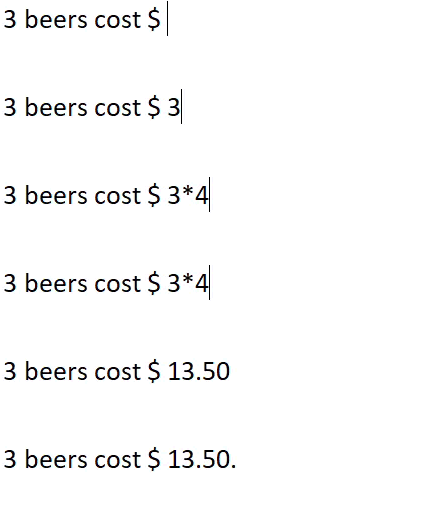
PhraseExpress evaluates math expressions directly within any document, eliminating the need to toggle between a calculator and your text editor!
Restrict Autotext to specific apps
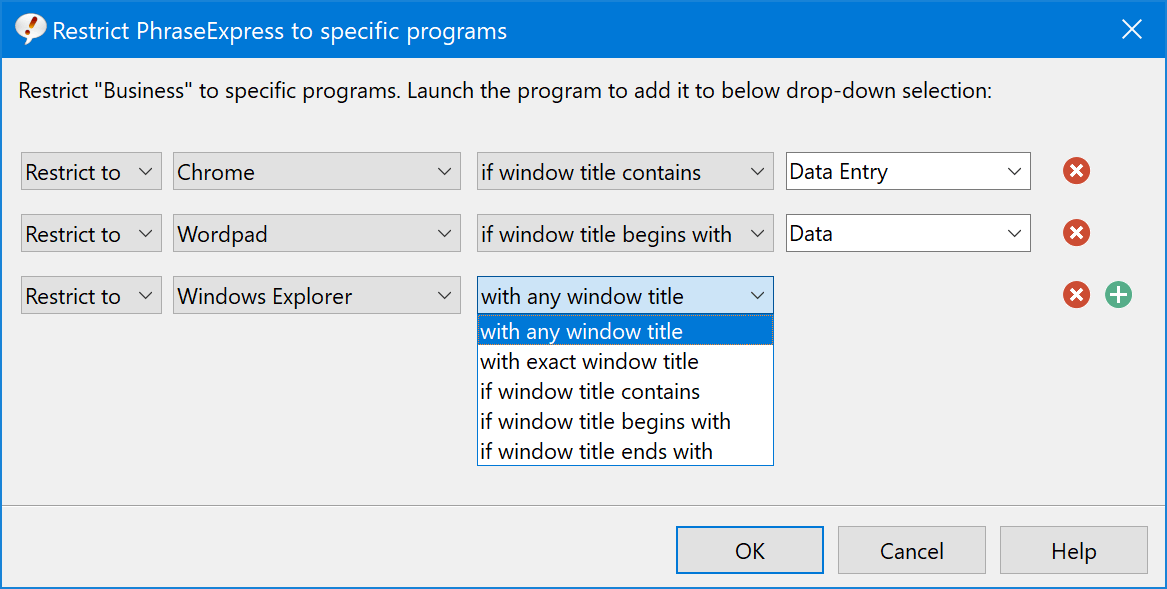
Autotext and hotkeys for any phrase can be limited to specific programs.
The same autotext can take on different meanings in different applications.